
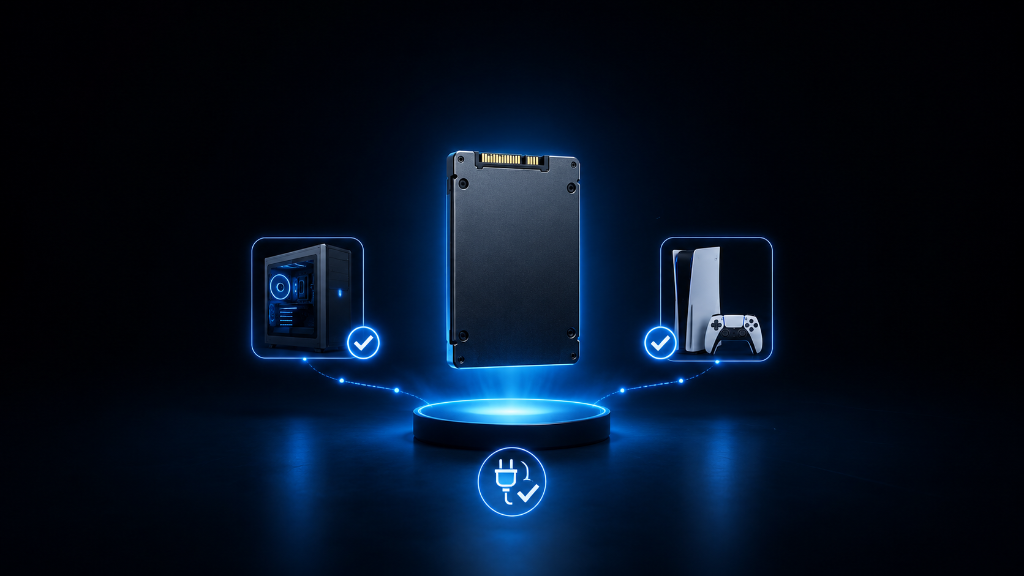
Buying gaming storage can feel exciting until one question slows everything down.
Will this drive actually work with my PC or console?
That question matters because storage is not only about price, size, or speed. A drive can look perfect online and still be wrong for your setup.
It may not fit your motherboard.
It may not match your laptop.
It may not meet your console’s storage rules.
It may plug in, but not run games the way you expected.
For beginners, this can feel confusing because storage labels can pile up quickly: M.2, NVMe, SATA, 2.5-inch SSD, HDD, external USB drive, PCIe Gen 3, Gen 4, console expansion, and more.
The goal is not to memorize every storage term.
The goal is to check compatibility in the right order before you buy.
Once you know what your system supports, storage shopping becomes much easier. You stop guessing and start choosing the drive that fits your setup.
If you’re still learning how gaming storage works, our Beginner’s Guide to Gaming Storage: SSDs and HDDs explains the fundamentals so you can better understand storage types before checking compatibility with your PC or console.
The “It Looks Right” Mistake
A common beginner mistake is buying storage because it looks like the right kind of drive.
One SSD may look like a small stick that fits inside a PC. Another SSD may also look like a small stick, but it may use a different standard or need a different type of support.
A 2.5-inch SATA SSD may work in one desktop but not fit easily into another setup without the right cable, space, or mounting area.
External drives can create the same confusion.
A drive may plug in through USB, but that does not always mean it can play every game directly. Some consoles allow external drives for storing games but require internal high-speed storage or approved expansion storage for playing newer games.
This is why storage compatibility should come before excitement.
A drive can be fast and still be wrong for your system.
A drive can be large and still not fit.
A drive can be affordable and still not solve your gaming problem.
The safer beginner habit is simple:
Check first. Buy second.
Use a Before-You-Buy Compatibility Checklist
Start with your exact device.
Are you upgrading a desktop PC, gaming laptop, PlayStation, Xbox, handheld gaming PC, or external storage setup?
This is the first checkpoint because every device has different storage rules. A desktop PC may support multiple internal drives. A laptop may only have one available slot. A console may require a very specific storage type for newer games.
Next, check whether you need internal or external storage.
Internal storage usually works better for main games, faster loading, and a cleaner setup. External storage is easier to add and can be useful for backups, older games, screenshots, recordings, or extra files.
Then check the connection type.
For PCs, common options include NVMe M.2 SSDs, SATA SSDs, and SATA hard drives. For external drives, the connection is usually USB, but the speed of the USB port and cable still matters.
After that, check physical fit.
M.2 SSDs come in different lengths. Desktop drives need case space. Laptops may have limited upgrade access. Consoles may require a specific expansion format. A drive must fit physically, not just technically.
Next, check speed support.
A fast NVMe drive may still work in an older compatible slot, but it may run at the slower speed of that system. That is not always bad, but you should know before paying extra for speed your device cannot fully use.
Then check capacity support.
Some systems have storage size limits or recommended ranges. A huge drive is not helpful if your system does not support it properly.
Finally, match the drive to the job.
If the drive is for your operating system and main games, compatibility and speed matter more. If the drive is for backups, screenshots, recordings, or older files, you may have more flexibility.
The right storage choice is not just the biggest or fastest drive.
It is the drive that fits your device, your games, and the job you need it to do.
Which Storage Type Should You Choose?
Choose an internal NVMe SSD if your PC or console supports it and you want the best option for main games, faster loading, and long-term performance.
Choose a SATA SSD if your system does not support NVMe or you need a simpler SSD upgrade for an older PC.
Choose a SATA HDD if you need cheaper bulk storage for backups, videos, screenshots, older games, or files where speed matters less.
Choose external storage if you want easy expansion, backups, portability, or extra space without opening your device.
Choose console-specific expansion storage if your console requires it for newer games.
Check Compatibility Before You Chase Specs
Choosing gaming storage is like making sure a key fits the right lock. The key can look strong, shiny, and well-made, but it only works if it matches the lock.
Before buying storage, do not start with the biggest capacity or fastest speed number.
Start with fit.
Ask yourself:
What device am I upgrading?
Does it support internal storage, external storage, or both?
What connection does the drive need?
Does the drive physically fit?
Can my system use the drive’s speed?
Does my console have special storage rules?
Is this drive meant for main games, extra files, backups, or portable storage?
Once those answers are clear, the right choice becomes much easier.
A compatible drive should fit your system, the job you want it to do, and your setup goals.
That is how beginners avoid bad purchases and choose storage with more confidence.
After learning how to choose compatible gaming storage, explore more beginner-friendly PC setup guides in our Setup Zone category page.
Leave a Reply