
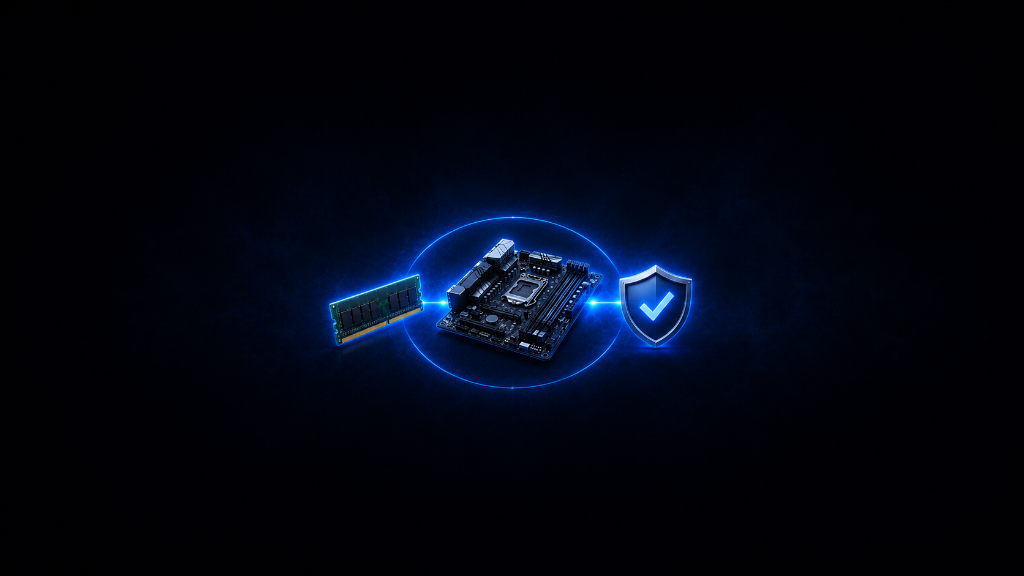
RAM compatibility can feel intimidating when you are new to gaming PCs.
You may find a RAM kit that looks perfect. It has enough capacity, the speed looks good, the price is fair, and maybe it even has RGB lighting. Then one question can stop everything:
Will this RAM actually work with my motherboard?
That question matters.
RAM is not a universal part that fits every computer. Your motherboard helps determine what kind of RAM your system can use. If you buy the wrong generation, wrong form factor, unsupported capacity, or a kit that does not match your platform well, the RAM may not fit, may not run correctly, or may not work at all.
The good news is that RAM compatibility becomes much easier when you check the right things in the right order.
You do not need to memorize every memory term.
You just need a simple before-you-buy checklist.
If you’re still learning the basics of gaming memory, our RAM for Gaming: A Beginner’s Guide explains the core concepts before you start comparing compatibility details.
The “It Looks Right” Problem
One of the biggest beginner mistakes is buying RAM based only on the product listing.
A RAM kit might say 16GB, 32GB, DDR5, 6000MHz, gaming memory, desktop memory, or high performance. Those labels can sound impressive, but they do not answer the most important question by themselves.
Does it match your motherboard?
A beginner might buy DDR5 RAM because it is newer, only to find out their motherboard supports DDR4. Another beginner might buy desktop RAM for a laptop. Someone else might buy a kit with more capacity than the motherboard supports, or choose a speed that does not run as expected.
This is why RAM shopping should not start with the RAM.
It should start with the motherboard.
Your motherboard is the rulebook. It tells you what RAM generation fits, how many slots you have, how much memory the board can support, and what speeds are realistic.
Once you know the rulebook, RAM shopping becomes much easier.
Step 1: Check the RAM Generation
The first compatibility check is RAM generation.
Most beginners will usually see DDR4 or DDR5 when shopping for gaming RAM. These are different memory generations, and they are not interchangeable.
- A DDR4 motherboard needs DDR4 RAM.
- A DDR5 motherboard needs DDR5 RAM.
You cannot install DDR5 RAM into a DDR4 motherboard, and you cannot install DDR4 RAM into a DDR5 motherboard. The slots are designed differently, so the wrong type will not fit.
This is the first thing to check before looking at capacity, speed, color, brand, or price.
If you already own the motherboard, search the motherboard model and review its specifications page. It should clearly state whether it supports DDR4 or DDR5.
If you are buying a prebuilt gaming PC, check the system specifications.
If you are upgrading a laptop, check the laptop model carefully because laptop memory support can be more limited.
Do not guess here. RAM generation is a hard compatibility rule.
Step 2: Check Desktop RAM vs Laptop RAM
The next compatibility check is form factor.
Desktop RAM and laptop RAM are physically different.
Desktop computers usually use DIMM memory sticks. Laptops usually use smaller SO-DIMM memory sticks, though some modern laptops may have soldered memory that cannot be upgraded.
This matters because desktop RAM will not fit into a laptop RAM slot, and laptop RAM will not fit into a normal desktop motherboard.
If you are building or upgrading a desktop gaming PC, you are usually looking for desktop DIMM RAM.
If you are upgrading a gaming laptop, you need to confirm whether the laptop uses upgradeable SO-DIMM RAM or soldered memory.
This is especially important for laptop buyers. Some laptops advertise 16GB or 32GB of RAM, but the memory may be soldered to the board. If it is soldered, you may not be able to upgrade it later.
Before buying laptop RAM, check the exact laptop model, not just the brand.
Step 3: Check How Many RAM Slots You Have
After generation and form factor, check the number of RAM slots.
A desktop motherboard may have two or four RAM slots. A laptop may have two slots, one slot, or no upgradeable slots. Some systems may already have all slots filled.
This affects how you upgrade.
For example, if your desktop has four slots and only two are being used, you may have room to add more RAM. If your motherboard only has two slots and both are already filled, upgrading may require replacing the existing sticks instead of adding new ones.
Slot count also affects buying decisions.
- A 2x8GB kit gives you 16GB total.
- A 2x16GB kit gives you 32GB total.
- A 1x16GB stick gives you 16GB total, but it may not be as ideal as a matching two-stick kit in many desktop setups.
For most beginner gaming desktops, a matching two-stick kit is often a clean choice because it can support dual-channel memory when installed correctly.
Before buying, check how many slots your system has and how many are already occupied.
Step 4: Check the Maximum Supported Capacity
Motherboards and laptops have memory limits.
Your system may support up to 32GB, 64GB, 128GB, or another maximum amount depending on the motherboard, CPU, and platform.
This matters because buying more RAM than your system supports can create problems or waste money.
For example, if a system only supports up to 32GB, buying a 64GB kit does not make sense. If a motherboard supports up to 128GB but you only need 16GB or 32GB for gaming, you do not have to fill the maximum amount.
Maximum support is not a target. It is a limit.
Beginners should use it to avoid buying something the system cannot handle, not as a reason to buy the biggest amount possible.
For most gaming beginners, 16GB is a practical starting point, and 32GB is a stronger comfort choice. The important part is making sure your motherboard or laptop supports the amount you plan to install.
Step 5: Check RAM Speed Support
RAM speed can be confusing because the product page may advertise a high number, but your system may not automatically run at that speed.
Your motherboard and CPU both influence supported memory speed. Some RAM kits may run at a basic safe speed until you enable a memory profile in the motherboard settings. This is normal.
The beginner mistake is assuming that any high-speed RAM kit will run at full speed in any system.
It may not.
A motherboard specification page usually lists supported memory speeds. It may also show which speeds are supported normally and which are considered profile-based or overclocked.
For beginners, the safest approach is to choose a reasonable speed that fits your platform instead of chasing the biggest number.
A compatible RAM kit at a stable, supported speed is better than an extreme kit that creates confusion or stability problems.
Speed matters, but compatibility and stability matter first.
Step 6: Check the Motherboard Support Page
Many motherboard manufacturers provide a memory support list, sometimes called a QVL, which stands for Qualified Vendor List.
This list shows RAM kits that have been tested with that motherboard.
Beginners do not always need to buy only from this list, but it can be helpful. If you are nervous about compatibility, choosing a kit listed on the motherboard support page can provide extra confidence.
Still, the QVL is not perfect. It may not include every RAM kit that works. Newer kits may not be listed. Similar kits may work even if they are not shown.
Think of the QVL as a confidence tool, not the only possible answer.
The most important checks are still generation, form factor, capacity, slots, and supported speed.
Step 7: Avoid Mixing Random RAM Sticks
Beginners should be careful about mixing RAM sticks from different kits.
Sometimes mixed RAM can work, but it can also create problems. Different speeds, capacities, timings, and brands may not always cooperate smoothly. The system may run at the speed of the slower stick, fail to boot, or become unstable.
For a beginner, the cleaner choice is usually to buy a matching kit.
If you want 16GB, a 2x8GB kit is usually a simple desktop choice.
If you want 32GB, a 2x16GB kit is usually a simple desktop choice.
If you are upgrading an existing system, try to match the current RAM as closely as possible, or consider replacing it with a new matching kit if the budget allows.
A matching kit reduces guesswork and makes the upgrade easier to understand.
Check Compatibility Before You Buy
Checking RAM compatibility is like checking whether a key fits a lock—if the basics do not match, nothing else matters.
Before buying RAM, do not ask, “Does this RAM look good?”
Ask, “Does this RAM match my motherboard?”
That question protects your money and your setup.
Check the RAM generation first. Make sure your system supports DDR4 or DDR5. Then check whether you need desktop RAM or laptop RAM. Look at how many slots you have, how much RAM your system supports, and what speeds are realistic for your platform.
If you want extra confidence, check the motherboard memory support page. If you are upgrading, avoid mixing random sticks unless you know what you are doing.
RAM compatibility does not have to be scary. It is just a checklist.
Generation. Form factor. Slots. Capacity. Speed. Support page. Matching kit.
When those pieces line up, the buying decision becomes much easier.
After learning how to evaluate RAM compatibility, explore more PC-building guides and upgrade strategies in our Setup Zone category page.
Leave a Reply