
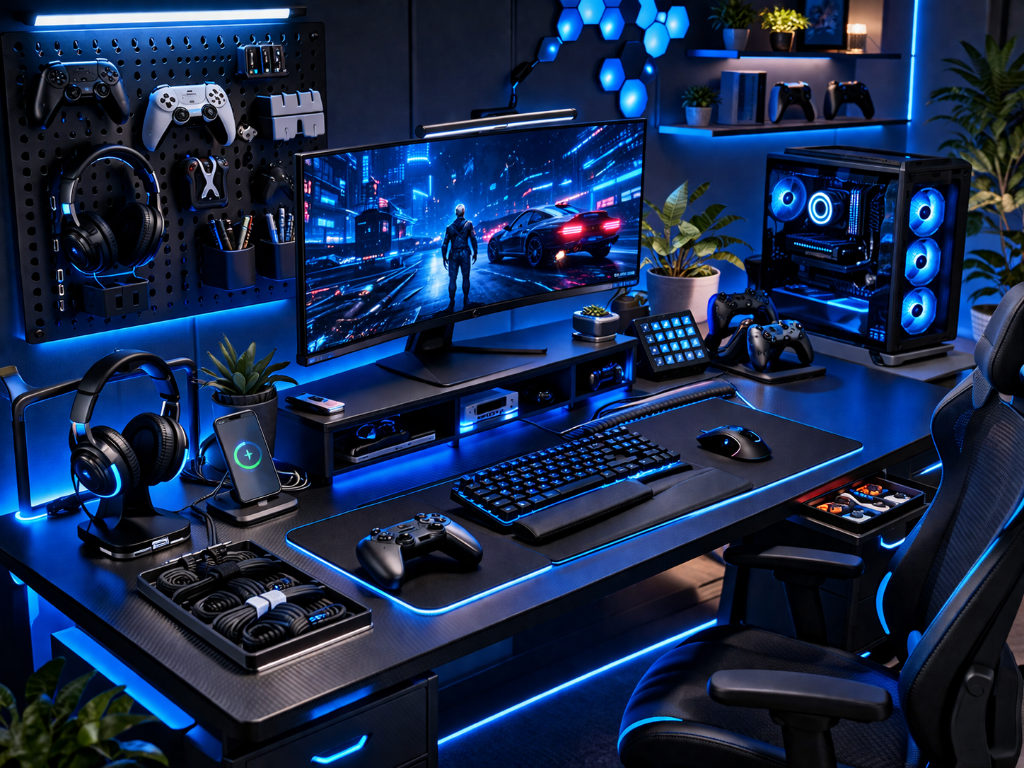
If your gaming setup feels distracting, cramped, or slow to use, the issue may not be your gear—it’s your layout.
You reach for things too often.
Your desk feels cluttered.
Your keyboard, mouse, or controller never feels exactly where it should be.
In video games as a hobby, a disorganized setup quietly reduces focus and control.
The good news: you can fix this in minutes without buying anything new.
If you’re new to gear basics, start with our Beginner’s Guide to Gaming Accessories to understand what actually matters before organizing it.
From Messy to Squared Away
A beginner sits down to play, but the setup feels off. Cables cross the desk. Extra items take up space. The controller sits off to one side, the headset blocks movement, and the mouse area feels tight.
Nothing is broken—but everything feels slightly harder than it should.
Another player makes a few simple changes. They clear the desk, keep only essential items within reach, and place their main input devices directly in front of them.
Within minutes, the setup feels calmer, faster, and easier to use.
The difference wasn’t better equipment.
It was better organization.
Organize Your Setup Step-by-Step
Use this sequence right now:
Step 1: Clear the Surface
Remove anything not needed for your current session.
Keep only:
- main input device (controller or keyboard/mouse)
- display
- audio device
- one or two essentials (e.g., water)
Move everything else off the desk or out of reach.
You’ll know this is working if:
- Your desk feels open immediately
- Your eyes stop jumping between unrelated items
Step 2: Center Your Primary Control Zone
Place your main device directly in front of your body.
- Keyboard centered with your torso
- Mouse next to it with enough movement space
- Controller placed directly in front when not in use
- Headset placed in one consistent, reachable spot
You’ll know this is working if:
- Your hands land on your controls without searching
- You stop repositioning during play
Step 3: Keep Essentials Within Arm’s Reach
Only keep frequently used items close:
- controller / mouse / keyboard
- headset
- one essential item (like water)
Everything else should stay outside your immediate reach.
You’ll know this is working if:
- You stop stretching, twisting, or pausing gameplay to grab items
Step 4: Reduce Visual Distractions
- Move cables out of your main view
- Group similar items together
- Keep your front-facing space clean
You’ll know this is working if:
- Your focus stays on the screen instead of your desk
Step 5: Test and Adjust One Element at a Time
Play for 5–10 minutes and observe:
- where your hands naturally move
- what still feels slow or awkward
- what still distracts you
Adjust one thing, then test again.
You’ll know this is working if:
- Your setup feels automatic to use
- You stop thinking about your space while playing
Mechanism in Action
Place only essential items within arm’s reach, remove visual clutter from your desk, and position frequently used devices directly in front of you for quick, natural access.
Key Principle
A focused setup reduces friction. Less clutter = faster decisions and smoother control.
A Cozy Setup
Think of your gaming setup like a chef’s kitchen: a clear workspace, tools within reach, and nothing in the way of execution.
Pause before your next session and run a 3-minute reset:
- Clear your desk
- Center your main device
- Move essentials within reach
Then play for a few minutes.
If your movements feel easier and your focus feels cleaner, your setup is now working with you—not against you.
Once your setup feels efficient, continue refining your environment inside the Setup Zone to build a fully optimized gaming space.
Leave a Reply