
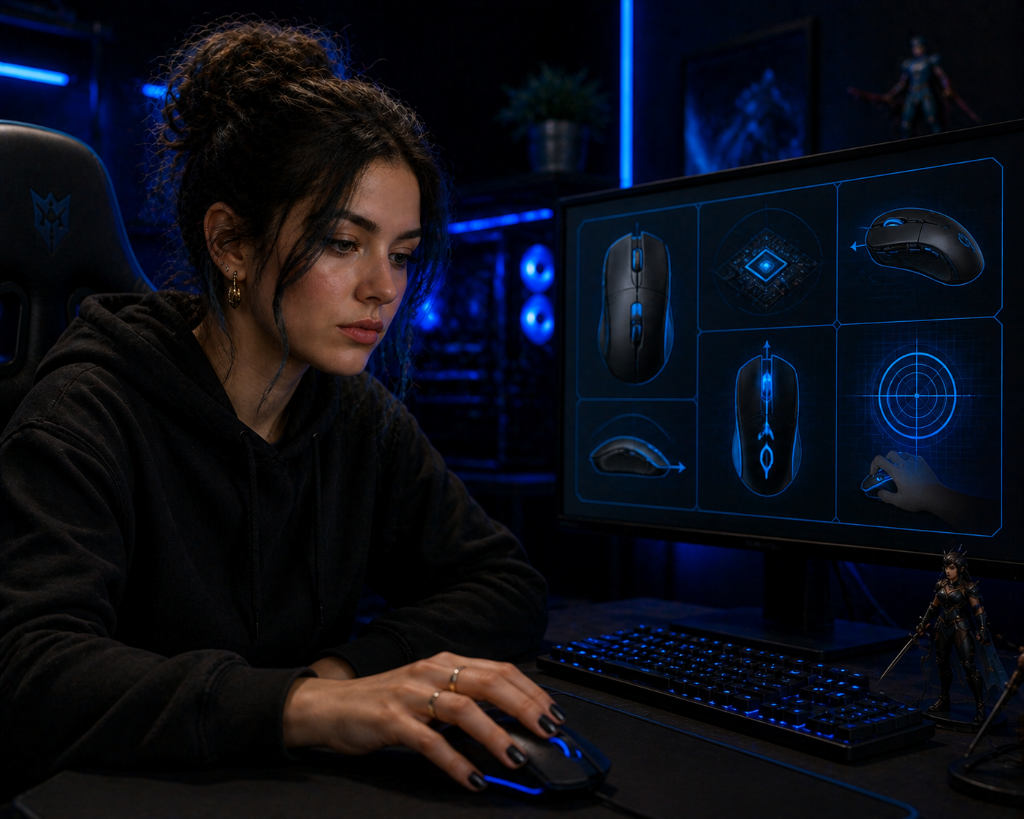
Your mouse should feel reliable—but something is wrong.
The cursor freezes. Clicks do not register. Movement feels delayed. Your mouse disconnects during gameplay.
In video games as a hobby, mouse problems can quickly break control and make your setup feel unreliable.
Here’s the key:
A mouse that isn’t responding properly is not always broken. The issue is often connection, surface, settings, or software.
If you need a quick foundation first, start with our Beginner’s Guide to Gaming Mice before troubleshooting deeper issues.
From Panic to Troubleshooting
A beginner starts playing and suddenly their mouse acts strange.
The cursor stops moving smoothly.
Clicks sometimes work and sometimes don’t.
The game feels delayed or unresponsive.
They assume the mouse is failing and start thinking about replacing it.
Another player follows a simple recovery path.
They check the connection first.
They test the mouse on a clean surface.
They try it in another app.
They confirm mouse settings.
Within minutes, they find the issue: the mouse works, but the surface and settings were causing poor response.
The difference wasn’t better gear.
It was better troubleshooting.
Diagnose and Fix the Problem
Use this recovery path before replacing your mouse.
Step 1: Check the Mouse Connection
Start with the simplest cause first.
- If wired, unplug and reconnect the USB cable
- Try another USB port
- If wireless, check battery level or charging
- Reconnect the Bluetooth or wireless receiver
You’ll know this is working if:
- The mouse reconnects, lights up, or starts responding normally
Step 2: Test the Mouse Surface
A mouse needs a reliable surface to track correctly.
- Use a clean mouse pad or flat surface
- Remove dust, crumbs, or reflective objects
- Avoid glass or uneven surfaces
You’ll know this is working if:
- Cursor movement becomes smoother
- Skipping or freezing decreases
Step 3: Test in Another App or Device
Check whether the issue happens everywhere or only in one game.
Try:
- Moving the cursor on your desktop
- Clicking in a browser
- Testing the mouse on another device if possible
You’ll know this is working if:
- The mouse works outside the game, which means the issue is likely game settings or software
Step 4: Confirm Mouse Settings
Check system or game settings.
Look for:
- DPI changes
- sensitivity settings
- disabled buttons
- input mode conflicts
- custom button mapping
You’ll know this is working if:
- Movement and clicks behave normally after settings are corrected
Step 5: Restart Only After Basic Checks
If the mouse still acts inconsistent:
- Restart the game or app
- Reconnect the mouse after restarting
- Re-test movement before changing more settings
You’ll know this is working if:
- The mouse responds normally after the app or connection resets
Decision Rule – Fix, Adjust, or Upgrade?
- Fix: loose cable, low battery, dirty surface, bad USB port
- Adjust: DPI, sensitivity, button mapping, game input settings
- Upgrade: mouse fails across multiple apps or devices after connection, surface, and settings checks
Do not assume the mouse is broken until it fails outside the game too.
One Tiny Action
Check the mouse connection first, test it on a clean surface or another app/device, then confirm mouse settings before assuming the mouse is broken.
Key Principle
Troubleshoot in order: connection → surface → device test → settings → hardware.
Keep It Reliable
Before longer sessions:
- Check battery or cable connection
- Keep your mouse pad clean
- Avoid changing DPI without noticing
- Test movement before important gameplay
- Keep the wireless receiver close if using wireless
Fix This Now
A non-responsive mouse is like a TV remote with weak batteries or a loose connection: check power and connection first, then the surface and settings, and only then suspect hardware damage.
Pause your game and run a quick mouse reset:
- Reconnect the mouse
- Test it on a clean surface
- Try it in another app
- Check DPI, sensitivity, and button settings
If the mouse works outside the game and responds after settings are corrected, your setup is back under control.
Once your mouse is reliable again, continue refining your setup inside the Setup Zone for a smoother gaming experience.
Leave a Reply