
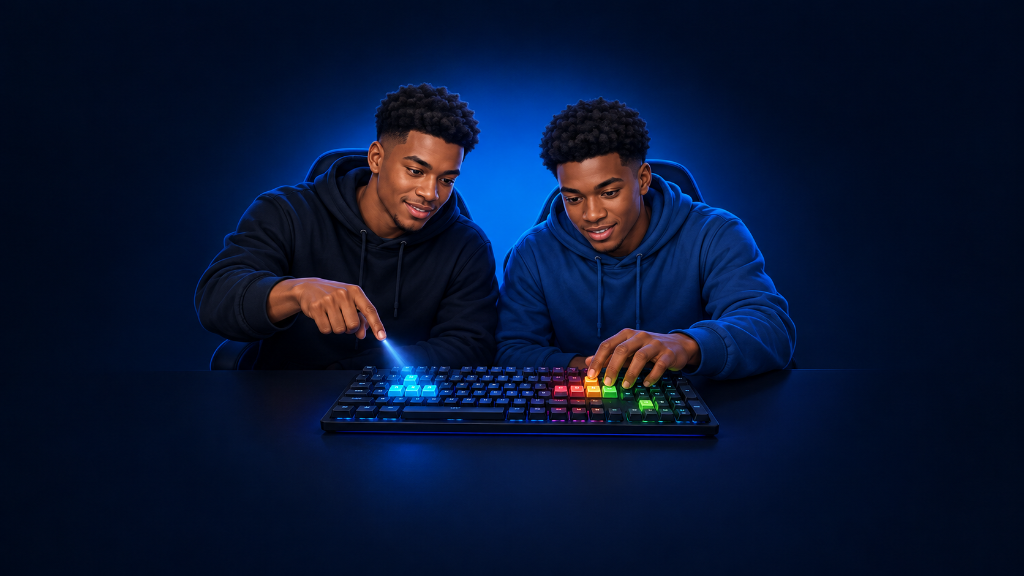
Keyboard lighting works best when it helps you find important keys, not when it tries to light up everything.
Start with a simple plan: keep most keys one calm color or low brightness, then highlight the keys you use most for movement, main actions, or important tools. Test the setup while playing. If it feels distracting, change one part instead of rebuilding the whole lighting profile.
Your goal is not to make the keyboard look busy. Your goal is to make the right keys easier to find when you need them.
For help choosing the keyboard basics that support your setup, read Mechanical Keyboards for Gamers: Choose the Basics That Matter.
The Rainbow That Hid the Important Keys
A player turns on a new keyboard and sees every key glowing in many bright colors.
It looks exciting. But when the player needs to find a key quickly, every key looks equally important. The light does not guide their hand. It only fills the desk with color.
The player changes everything at once: colors, brightness, effects, and key groups. Soon they do not know which choice helped and which choice made the keyboard harder to use.
A better setup starts small. Pick the keys that matter most, make them easy to notice, and test the result before changing more.
Light the Keys That Help You Act
Save Your Current Lighting First
Before changing your lighting, save the current profile if your keyboard software allows it. If it does not, take a screenshot or write down the current colors and brightness.
This gives you a safe return point if the new setup feels worse.
Do not delete your default profile until you know the new one helps.
Choose Three Important Key Groups
You do not need a different color for every key.
Start with up to three groups:
- Movement keys: The keys you use to move your character.
- Main action keys: The keys you press most during normal play.
- Important tool keys: Keys for maps, inventory, chat, healing, or other actions you need to find quickly.
Keep rare actions simple. You can add them later if you discover that you need extra help finding them.
Make Important Keys Easy to Notice
Use a simple lighting pattern.
You can try:
- A calm, low-brightness color for most keys
- A brighter color for movement keys
- A second color for your main action keys
- A third color only for one important tool group
Avoid using too many bright colors at once. If every key is bright, no key stands out.
Also check the brightness. Lighting should help you see keys without shining into your eyes or pulling your attention away from the screen.
Test in a Safe Practice Space
Open a practice mode, training area, private match, or another low-pressure place.
Try a short test:
- Move your character.
- Use your main action keys.
- Open your map, inventory, or menu.
- Return to movement.
- Notice whether you looked down at the keyboard.
- Notice whether you pressed the wrong key.
Ask one simple question:
“Did the lighting help me find an important key faster?”
If the answer is yes, keep the setup. If the answer is no, adjust only one part.
Adjust One Part at a Time
Choose one small change after each test.
You might:
- Make the movement keys brighter
- Lower the brightness of the rest of the keyboard
- Change one key group to a clearer color
- Remove a distracting lighting effect
- Add one important tool key to an existing group
Do not change every color after one awkward moment. Test the same task again first.
If the lighting software is unclear, locked, or requires settings you do not understand, stop and ask for help from the device owner, manufacturer support, or a trusted adult.
Observe and Adjust Your Lighting Plan
Use this list while setting up backlighting:
- Save your current lighting profile or take a screenshot.
- Choose no more than three important key groups.
- Set a calm base color for most keys.
- Highlight your movement keys with a brighter color.
- Highlight your main action keys with one different color.
- Test the setup during a short practice task.
- Observe what happened: Did you find keys faster? Did the lighting distract you? Did you press a wrong key?
- Adjust one thing only before testing again.
- Record the result after each test.
- Plan the next action: keep the profile, change one key group, lower brightness, or test again during another game session.
Your record can be short:
Lighting change: Movement keys made brighter.
Expected: Easier movement-key finding in low light.
Observed: I looked down less often, but the brightness felt too strong.
Adjustment: Lower movement-key brightness one level.
Next review: Test the new brightness in a longer practice session.
Make the Keyboard a Small Map
Keyboard lighting is like adding labels to a map. You do not label every tree and rock. You label the places that help you find your way.
After setting up lighting that supports your most important controls, explore more practical keyboard and gaming setup guides in the Setup Zone category page.
Leave a Reply