
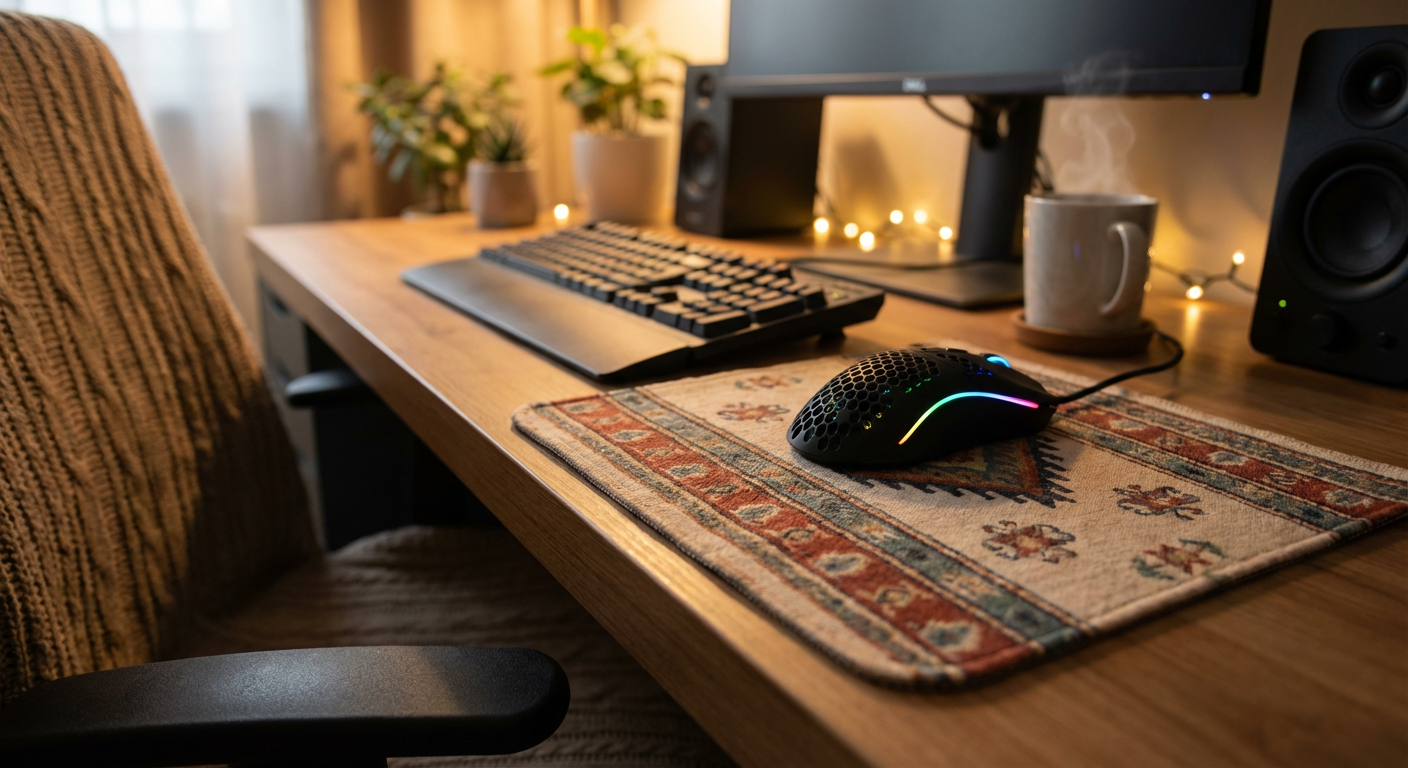
You can buy a great gaming mouse and still feel “off” during gameplay. Your aim feels shaky, your wrist gets tired, or movements don’t feel predictable. Many beginners assume they just need more practice.
But often, it’s not skill—it’s setup.
Gaming as a hobby is built on repetition. If your mouse isn’t adjusted for comfort and control, every session becomes slightly harder than it needs to be. Small setup changes, applied methodically, can dramatically improve consistency over time.
Begin your hobby by reading our “Beginner’s Guide to Gaming Mice”, the first place to visit.
Tiny Mouse Improvements
When I first started gaming with a mouse, I plugged it in and began playing immediately. I left the default DPI, ignored in-game sensitivity settings, and didn’t think about posture. After longer sessions, my wrist felt tight, and my aim felt inconsistent. Eventually, I switched to a controller just to avoid discomfort.
I realized I needed a system.
I lowered my gaming mouse DPI, adjusted in-game sensitivity, repositioned my mouse pad for better arm movement, and relaxed my grip. The improvement wasn’t instant—but over time, my movements became more predictable. I could play longer without discomfort, and my confidence increased.
That’s when I understood:
Comfort builds consistency. Consistency builds control.
A Simple Setup Routine
Instead of changing everything at once, use incremental adjustments. Make one change at a time and test it for several sessions before deciding.
Here’s a practical setup checklist:
Set a Baseline DPI
Start between 800–1600 DPI.
Lower DPI generally improves control because it encourages larger, more stable arm movements instead of small wrist-only movements.
Avoid extreme DPI settings unless you have a specific reason (such as very high-resolution monitors).
Adjust In-Game Sensitivity
DPI and in-game sensitivity multiply together. If movement feels too fast, reduce in-game sensitivity before changing DPI again.
Goal:
Your crosshair should move smoothly without feeling jumpy or sluggish.
Use Adequate Mouse Pad Space
A medium or large mouse pad allows full arm movement. Limited space forces small, tense wrist movements, which reduce control and increase fatigue.
Your forearm—not just your wrist—should contribute to movement.
Optimize Grip Pressure
Hold the mouse securely, not tightly. Excess tension reduces precision and increases fatigue.
If your fingers rest naturally on main buttons and side buttons without stretching, your grip is likely correct.
Check Desk and Posture Alignment
- Keep your wrist mostly straight—not bent upward or sideways.
- Let your forearm rest lightly on the desk.
- Avoid pressing your wrist hard into the surface.
Proper alignment reduces strain during long sessions.
Test in Short Sessions
Play for 10–20 minutes after each adjustment.
Only change one variable at a time. This isolates what actually improves control.
Track What Works
Keep simple notes:
- DPI value
- In-game sensitivity
- Comfort level
- Fatigue after 30+ minutes
Over a few weeks, patterns will appear.
Optional Comfort Upgrades (If Needed)
Only consider these if discomfort persists:
- Larger mouse pad
- Wrist rest (used lightly, not as pressure support)
- Desk height adjustment
- Chair height adjustment
Accessories should solve specific problems—not create clutter.
Beginner Rule
If your movements feel predictable and your wrist feels relaxed after longer sessions, your setup is working.
You are aiming for repeatable control—not extreme sensitivity or speed.
Begin your Setup
Setting up your gaming mouse is like tuning an instrument. When adjusted properly, your movements feel natural and responsive.
Before chasing upgrades, refine what you already own. Start now, adjust something small. Gaming as a hobby grows strongest when your tools support long-term comfort and control.
Continue exploring the Setup Zone and build your setup through small, intentional improvements.
Leave a Reply