
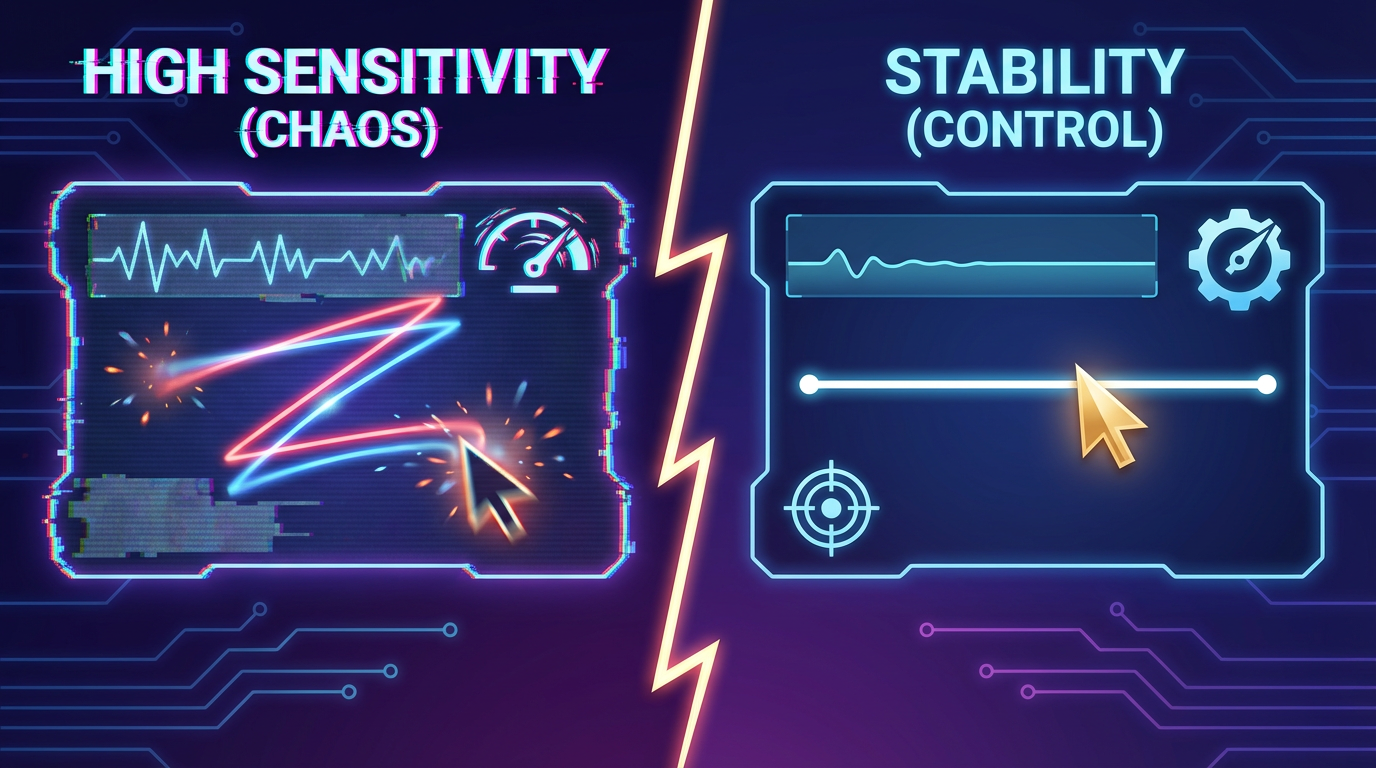
You’re shopping for a gaming mouse and see bold numbers on the box: 12,000 DPI. 20,000 DPI. Even higher. It sounds impressive—like more DPI must mean better performance.
But when starting gaming as a hobby, the real question isn’t how high the DPI goes.
It’s how well you can control it.
Understanding DPI in simple terms helps you avoid chasing numbers and instead focus on comfort, precision, and consistency.
Read our “Beginner’s Guide to Gaming Mice” to kick off your new hobby.
A Steady and Precise Mouse
When I bought my first gaming mouse, I immediately increased the DPI. I assumed higher sensitivity meant faster reactions. The cursor flew across the screen with minimal movement. At first, it felt powerful.
Then I tried aiming carefully.
Small hand adjustments caused large jumps on screen. I constantly overshot targets. My movements felt unstable.
Later, I lowered the DPI to a moderate setting and adjusted my in-game sensitivity. Everything slowed down slightly—but felt more controlled. My crosshair stopped overcorrecting. Movements became repeatable.
That’s when I realized:
DPI isn’t about speed. It’s about control.
What DPI Actually Does
DPI (Dots Per Inch) measures how far your cursor moves on screen relative to physical mouse movement.
- Higher DPI
- Cursor travels farther with smaller hand movement
- Feels faster and more sensitive
- Can amplify small hand tremors
- Lower DPI
- Requires larger physical movement
- Feels steadier and more controlled
- Encourages arm-based movement instead of wrist-only movement
For most beginners, 800–1600 DPI is more than enough.
Modern mice advertise extremely high DPI, but those maximum numbers are rarely necessary in normal play. What matters more is:
- A reliable optical sensor
- Consistent tracking
- Stable, predictable movement
DPI and In-Game Sensitivity Work Together
DPI is only one part of the equation.
Your effective sensitivity = DPI × in-game sensitivity.
Efficient approach:
- Choose a moderate DPI (start around 800 or 1000).
- Adjust in-game sensitivity until movement feels smooth and controlled.
- Test for 10–20 minutes before making further changes.
Avoid constantly switching values when setting up your gaming mouse. Consistency builds muscle memory.
Important Setting for Windows Users
If you play on Windows:
- Keep “Mouse Pointer Speed” at the default middle setting (6/11).
- Turn Enhance Pointer Precision OFF.
Enhance Pointer Precision adds mouse acceleration, which changes cursor movement based on speed. For gaming, this reduces predictability.
Most gaming mice also include manufacturer software for setting DPI profiles. Use it to select fixed DPI steps rather than constantly adjusting during play.
Beginner Rule
Choose sensitivity that feels smooth and predictable—not fast and flashy.
If you can track a moving target steadily and stop exactly where you intend, your sensitivity is working.
Stabilize your Mouse
Think of DPI like steering sensitivity in a car. Too sensitive, and small movements cause overcorrection. Balanced sensitivity keeps you steady and repeatable.
Start moderate. Adjust gradually. Anchor your settings around control and consistency.
Gaming as a hobby grows best when your movements feel natural and dependable.
Explore the Setup Zone and continue building your setup with intention.
Leave a Reply